Pixelate Selection v0.2.1
Posted: December 04 2011
Takes any selection and pixelates a clone to the specified cell size.
Command idea and testing by Dave Hogue.
Extensions, resources & tutorials for Fireworks, Dreamweaver & HTML5 / CSS3 by UI developer, Matt Stow.
Posted: February 22 2017
In this post, I discuss some of the potential pitfalls and differences of dropping Sass variables for CSS variables (custom properties).
Posted: November 15 2016
A detailed, but simple tutorial on understanding Redux and making asynchronous calls with Redux Thunk.
Posted: October 30 2016
In this post, I detail how to use my react-native-svg-icon componentto create an SVG icon system for React Native in a similar way to that on the web.
Posted: May 13 2016
In this post, I justify how taking an object-oriented approach to CSS with BEM (or similar) can actually be an ally of semantic markup and accessibility, and how it can lead to a more consistent, predictable, resilient and performant codebase that's easier to maintain.
Posted: March 31 2016
Based on a prior technique of managing z-indexes by Jackie Balzer, I've just come up with a better variation using Sass maps and lists, which allows me to clearly see the hierarchy of the different elements.
Read my full solution to managing z-indexes with Sass on CodePen.
Posted: September 27 2015
For good reason, icon fonts and drawing with CSS pseudo-elements are out, and SVGs are in! But unfortunately, SVGs also have their fair share of (different) issues to contend with.
Read my comparisons of different SVG icon systems and my preferred method on CodePen.
Posted: August 28 2015
As I've ran in to this issue a number of times now, I'm writing it down in the hope I remember for future and others will find it useful.
If you register a custom grunt task that is named the same as a plugin's task, it will cause an infinite loop with zero output unless you use --verbose.
Posted: May 25 2015
Posted: March 10 2015
With web sites/apps becoming more and more dynamic on the front-end, it can be difficult to see exactly what modifications JavaScript is making to elements in the DOM.
To help, I've taken the rather lo-fi approach of recording Firebug (or Chrome's Dev Tools) with LICEcap, a free, cross-platform tool for animated screen captures.
Posted: November 11 2014
Let me start by saying that this is not a “break-up with jQuery post” — in fact, I like jQuery and know that we all owe it a great debt. jQuery does great things for normalising behaviours, fixing bugs and providing a somewhat simpler syntax, but we need to start relying on a lot less.
With the explosion of mobile and low-powered devices, it's becoming more and more apparent that front-end #perfmatters. We need to be considerate of the impact that our web solutions have on a user's battery, the speed on which the DOM is manipulated and pages are rendered to the screen. While there are many facets of web performance optimisation, I'd like to focus on a simple one that every developer who uses jQuery can easily achieve: use native “vanilla” JavaScript properties and methods where suitable.
Read my quick and easier JavaScript performance tips on CodePen.
Posted: October 12 2014
I'm currently working on a project to write 100s of unqiue, internal web apps to live inside a common framework. Each app has completely different features and functions, but all share consistent UI patterns where buttons trigger actions that are specific to that app.
So, I had to solve the problem of “how can we simplify the development of each app's functions, without writing dozens of similar onClick event handler for every element type?”
Posted: August 27 2013
I needed a simple Markdown editor for READMEs, whose CSS reflect those of GitHub and Bitbucket — so wrote WriteMe.md.
Give it a go and let me know what you think.
Posted: August 8 2013
Class Query is a simple method to help manage responsive content (and an alternative to element queries as an added bonus).
With all of the responsive web sites I've built, one particular issue arises after it's handed over to the client to manage: how does their content editor manage elements/modules that need to respond at arbitrary breakpoints?
I think Class Query could be the answer! Find out more.
Posted: August 1 2013
This latest update has the following changes:
Visit the CSS Professionalzr page for more info and to download
Posted: July 26 2013
In August 2012, I began collecting the viewport sizes of as many devices I could find. While the Google Doc I maintained was useful, the user experience wasn't. So, I've created Viewport Sizes, an up-to-date, searchable list of all the 211 devices I've gathered so far.
For each device, there's the following data: Name, Platform, OS Version, Portrait Width, Landscape Width and Release Date.
I hope you find it useful for any responsive design projects you build, and if you have a device that isn't in the list, please add it!
Take a look and let me know what you think.
Posted: February 24 2013
Today's update Easy CSS3 improves working with gradients, triangles and converting pixel-based media queries.
v2.3.0 has the following changes:
Posted: January 29 2013
A few weeks ago I realised that WebKit browsers are the only ones that don't include scrollbar widths in the viewport size for media queries. While this is technically incorrect, it makes more sense to me since scrollbar widths vary across platforms and in the case of “mobile” don't exist.
Now, if you build “responsively” and fluidly, this isn't generally a big deal. However, in my most recent project, the media queries I'd written while developing in Firefox were occuring too early (by 17px) on mobile and Chrome/Safari - causing layout issues. Similarly, any media queries written while developing in WebKit browsers fire too late on every other desktop browser.
So, I've written two platform-agnostic, vanilla JavaScript “plugins” to help combat this issue: Viewport Genie and mqGenie.
Continue reading: Your Media Queries are Wrong. You need Viewport Genie and mqGenie
Posted: January 20 2013
Feature detection using libraries such as Modernizr has (rightly) usurped browser sniffing as the method of choice for conditional styling and scripting. However, as Elijah Manor recently asked, Does Browser Sniffing Still Have a Place?, I firmly believe the answer is “yes”.
So, I've created Layout Engine, which is the best of both worlds by using feature detection to work out what “type” of browser is being used — including IE10!
Posted: January 14 2013
Today, I launched Australia's first Open Device Lab in Newcastle, NSW — funded by my company, Izilla.
Its aim is to allow local developers to freely test on a range of devices for a better web. We currently have 26 devices of various flavours to test on, so if you wish to use it, book in now!
For full details, visit: odl.izilla.com.au
Posted: January 6 2013
While testing a new site build, I discovered that lots of implementations of responsive design do not work in IE10 on Windows Phone 8, which for some reason treats device-width differently to every other mobile OS.
Never fear, read on for a detailed explanation and a fix.
Posted: December 29 2012
Justin Avery, curator of the Responsive Design Weekly email newsletter kindly invited me to share my thoughts in an interview on responsive web design for his interview series — along with other community leaders, such as Chris Coyier, Brad Frost and Andy Clarke.
I'd be interested to hear what you think of my interview and I recommend everyone sign up for the newsletter to get a good round-up of responsive articles in your inbox every Friday.
Posted: December 15 2012
On the Android Browser pre-Jellybean, font-size: 0 does not remove the white-space between inline-block elements.
Although the browser on Jellybean does remove the space, unfortunately, a random bug fails to remove all of the space before the last element.
Posted: December 12 2012
A bug in IE 9 and 10 causes block or inline-block pseudo elements that use rems for line-height to collapse the line-height to 0.
Posted: November 11 2012
This latest update has the following changes:
Visit the CSS Professionalzr page for more info and to download
Posted: October 18 2012
This is an important update as all gradients produced from Fireworks will be wrong in Firefox 16+ and IE 10 without CSS Professionalzr
This latest update has the following changes:
Visit the CSS Professionalzr page for more info and to download
Posted: October 17 2012
If you're not familiar with it, Easy CSS3 allows you to quickly insert CSS3 border-radius, gradients and triangles in your documents, as well as convert px to rem.
This latest update has the following changes:
Posted: September 27 2012
RWD Retrofit allows an existing "desktop site" to co-exist with a "responsive site", while also able to serve the desktop site to a different breakpoint on "mobile" - useful for serving the desktop site to tablets, for example.
For clients with smaller budgets and those who are unwilling to redevelop using a mobile-first philosophy, I created this JavaScript solution to allow a new responsive site alongside the existing site, which I'm hoping could be seen as quite a useful stop-gap solution in to RWD.
Posted: August 14 2012
I'm trying to gather info on as many devices I can, to see what viewports are out there in the wild.
I want to use this to help with responsive design & mobile web apps - not to target specific device widths, but to at least help 'optimize' for widths that are in use (if necessary).
If you have a non-iOS device, I'd really appreciate it if you visit What's my Viewport Size? and then submit your details to my Google Doc. This spreadsheet contains all of the vetted submissions so far.
I'll publish the results in some form after a while. Thanks in advance!
Posted: July 27 2012
The previous version unfortunately introduced a couple of bugs. This release:
Visit the CSS Professionalzr page for more info and to download
Posted: July 16 2012
HTML5 introduced some great features for forms, one of them being the required attribute on form inputs, which puts the onus on the browser to do the validation.
However, since you still need to do server-side validation for browsers that don't support required, testing empty required fields has become more difficult.
So, here's a bookmarklet that, when run, sets all required form inputs, selects and textareas to no longer be required, thus allowing you to submit empty forms.
Posted: July 8 2012
In April, I released a simple Media Query Debugger JavaScript for Izilla.
It's great, but it was annoying having to include it in your pages before you could use it. So, today I've converted it in to a bookmarklet so you can easily use it on any site.
Hopefully you'll all now be able to identify at exactly which size your responsive layouts "break".
Posted: July 8 2012
Calculates the fluid % width for responsive design from elements in your Fireworks design.
It caters for and uses the correct, actual width on elements with strokes and ignores any effects such as as drop shadows.
If you wish to calculate the width of multiple elements that have strokes, group them first.
0.3 - Add support for strokes and groups with stroked elements
0.2 - Round to integers. Use Tools array on CS6 to support multiple languages
0.1 - Initial release
Posted: June 24 2012
First released in 2007, this command to set the corner radius has been completely revamped for v2.0
This command allows you to set the corner radius as pixels of primitive rectangles and rectangle autoshapes.
It allows you to specifiy an exact pixel radius, even if the primitive rectangle is set to use percentages for its corner radius.
It also allows you to set an exact pixel radius if a rectangle is scaled, as the Property Inspector will report the non-scaled, pixel value.
Rectangle autoshapes are supported in that you can specify individual corner radii using the familiar CSS syntax.
For selections of multiple rectangles/rectangle autoshapes, you will be prompted to enter corners for each individually.
2.0 - Fixed bug in redrawing multiple Auto Shapes. Fixed incorrect rounding of %
1.9 - Added support for Rectangle Auto shape
1.8 - Correct rounding of % input. Do nothing if old and new radius is the same
1.7 - Return the correct px size for scaled rectangles. Convert scaled px rectangles to %
1.6 - Bug fixes for multiple rectangles, code refactoring and improvements
1.5 - Support exact px mode (and use if appropriate)
1.4 - Bug fixes
1.3 - Ability to set different radii to multiple selected rectangles. Fixed radius not able to be set to 0
1.2 - Bug fixes
1.1 - Bug fixes
1.0 - Initial release
Posted: June 13 2012
This previous two updates introduce the following changes:
Visit the CSS Professionalzr page for more info and to download
Posted: June 11 2012
If you're not familiar with it, Easy CSS3 allows you to quickly insert CSS3 border-radius, gradients and triangles in your documents, as well as convert px to rem.
This latest update has the following changes:
Posted: May 29 2012
This update to CSS Professionalzr converts % border-radius to their px equivalents and fixes some comma formatting in the -webkit-gradient property.
Visit the CSS Professionalzr page for more info and to download
Posted: May 20 2012
Fireworks CS6 introduced a fantastic feature with the CSS Properties panel. It allows the user to copy an element's attributes as CSS3 to make the build process more efficient. It doesn't produce the cleanest, most professional code, however, so I've written CSS Professionalzr to do it for you.
Select an object such as a rectangle (not a text object)
Posted: April 30 2012
These commands allow you to easily convert a CSS rule or selection that contains px to rems.
With the cursor placed anywhere in a line, run the command and if it contains at least one px value in the declaration, the line will be converted.
Alternatively, make a selection, and any px values will be converted.
Duplicate and Convert is identical to Convert px to rem, but the line will be duplicated and then converted so a px fallback for old IE exists. No more time wasted writing two rules every time you want to use rems!
Posted: April 25 2012
The problem with media queries and responsive design at the moment is there's no "real" way to deliver a particular content image (that's referenced in an img tag) for different breakpoints and resolutions.
After my initial attempt with responsive content images, I've improved upon it by dealing with them by using a spacer GIF and background images.
And yes, it even works with serving "retina images" to the new iPad.
All it requires is a blank 1x1 GIF (converted to base64), and then setting that image's background to whatever image needs to be served along with background-size: contain.
Read more about the technique, including pros & cons and view some demos
Posted: April 24 2012
Over at Izilla, I've written a simple media query debugger, which adds the viewport width and height as a :before pseudo element on the body to help with obtaining values for responsive breakpoints if a url parameter of mqdebug=true exists
It's really useful when you're working in the browser and you need to find out how wide the viewport is because your responsive layout has "broken" when you're in-between breakpoints.
Posted: April 15 2012
Image maps can still be useful, however, the coordinates used to specify the clickable regions are defined in absolute pixels.
So, I've created a jQuery plugin which allows image maps to be used in a responsive design by recalculating the area coordinates to match the actual image size on load and window.resize.
Posted: April 03 2012
This technique has been superceded by Responsive & Retina Content Images Redux.
The problem with media queries and responsive design at the moment is there's no "real" way to deliver a particular content image (that's referenced in an img tag) for different breakpoints and resolutions.
So, it occurred me to that the simplest way of dealing with content images (as img tags) in a responsive design and for retina screens was to use a spacer PNG (generally smaller than an GIF) and background images.
All it requires is a blank PNG or GIF the same size as the intended image, and then setting that image's background to whatever image needs to be served along with background-size: contain.
And yes, it even works with serving "retina images" to the new iPad.
Read more about the technique, including pros & cons and view some demos
Posted: April 03 2012
Adds three commands to Dreamweaver that allow you to quickly insert complete CSS3 Border Radius, Background Gradient and CSS Triangles, with all of the various browser vendor specific variants for cross-browser compatibility.
Posted: April 01 2012
So, I decided to practice what I preach and convert my website to use modern technologies. It's basically the same lame design but it's now fluid and responsive to look good regardless of screen size or device, uses no images (opting for CSS gradients, border-radius and triangles), uses a custom font, Karla, and utlises rems for font sizing.
All of the CSS3 was created using my Easy CSS3 extension for Dreamweaver.
Let me know what you think on Twitter @stowball.
Posted: March 22 2012
A fiddle demonstrating how to create custom select dropdowns using CSS and Modernizr.
Posted: March 19 2012
Here's a Fiddle which demonstrates how to use CSS3 transforms and pseudo-elements to create fully styleable arrows.
Posted: January 22 2012
I'm a huge fan of the Android platform and love my Samsung Galaxy S and Sony Tablet S to bits. However, I've noticed a growing trend in mobile web developers completely ignoring Android as a platform and releasing some horrible experiences for them.
So, I've created a Fighting the Inaccessible Mobile Web "name and shame" Google Spreadsheet, which I want everyone to contribute to when they encounter horrible mobile experiences on any platform.
Hopefully, if we can bring awareness to this, these companies and their developers will do something about it - and finally we can have an usable, accessible, platform-agnostic web.
Posted: December 09 2011
Styling form legends is still quite a tricky business, with Opera being pretty bad, and the others browsers unable to achieve certain appearances.
However, by adding the legend value as a data-legend attribute on its fieldset, you can style it however you like. Just absolutely position the actual legend off screen and… bingo!
Posted: December 04 2011
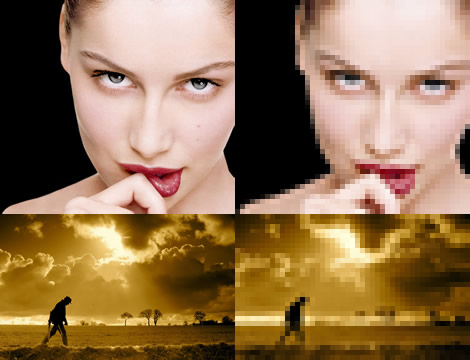
Takes any selection and pixelates a clone to the specified cell size.
Command idea and testing by Dave Hogue.
Posted: November 26 2011
Added compatibility with CS3, CS4 and Macs. Fixed various other bugs.
CS3 and CS4 users please ensure you uncheck 'Current page only' in the Export dialog.
Mac users please ensure you save all important open documents before exporting as it can crash Fireworks. A bug has been logged with the Fireworks team regarding this.
See full version history for details.
Posted: November 8 2011
I've started a project whose goal is to recreate the coolest sprites and art as swatches for Adobe Fireworks.
For each swatch, I'll provide an editable PNG of the design, and the swatch in Adobe Swatch Exchange (*.ase) and Color Table (*.act) formats.
To kickstart the project, I've created Super Mario and Mona Lisa swatches


Posted: October 28 2011
I've been interviewed by @chunwui for Fireworks Interviews, where I talk about my usage, extensions and continued fanatiscism of Adobe's greatest tool, Fireworks.
Posted: October 2 2011
Posted: September 24 2011
Only 4 years since the last update, this command now supports Fireworks CS4 & CS5's in-built pixel radius feature for rectangle primitives.
Also includes some performance enhancements.
Posted: September 11 2011
Here are a series of Dreamweaver CSS Code Hint Extensions to make your lives a little easier:
Posted: July 24 2011
Here's a Greasemonkey script that allows you to mute keywords, users and apps from dabr, an excellent Twitter website.
It's my Twitter website of choice in Firefox, but I was frustrated by having to put up with noise posts in my feed.
After installing, edit the Mute in dabr script to add your own keywords, users and apps to mute in the mute object at the top of the file.
Posted: July 23 2011
I've created a simple web app to shorten YouTube video URLs quickly and easily for sharing on social network sites such as Twitter.
Posted: April 27 2011
This command allows you to use simple arithmetic to resize objects. It extends John Dunning's excellent Keyboard Resize commands to give you numerical/mathematical control over resizing your selection.
Posted: February 14 2011
The latest update to these commands now supports copying the colour as RGB and RGBA (where necessary), as well as customisable hex codes, and with a number of bug fixes over the previous public release, v1.3.
Copy Colour From Picker can copy the colour as RGBA if the transparent canvas is at least partially visible.
Copy Colour From Fill can now copy the opacity values in gradients, and copy the composite alpha value if both the gradient and object are semi-transparent. So, copying a gradient node's colour whose opacity is set to 30% on an object whose opacity is 80%, will copy the resultant, composite opacity of 24%.
Download the command pack and unzip to your Adobe Fireworks command directory. By default, they'll copy colours as hex codes, but just run Copy Colour Preferences from the Commands menu to switch to RGBA.
Posted: December 30 2010
I've noticed when cross-browser testing, that most of my background positions were slightly out between browsers on Windows and OS X.
I ran some tests, and found that for cross-browser pixel perfection, vertical background positions need to be adjusted by -1px for OS X browsers, except Firefox (in some cases).
Posted: June 12 2010
This minor revision prevents semi-transparent alpha values from being appended to the copied hex code.
Posted: May 6 2010
Here's a quick Fireworks command that copies the selected object's height and width to the clipboard, ready for pasting in to your CSS file like so:
	height: 100px;
	width: 100px;
Posted: October 11 2009
After the relative (geddit?) success of my Relative Font Size Reference Chart, and after using it religiously for almost a year, I thought it was about time to produce a version for Dreamweaver, whereby you can insert the values directly in to your CSS document.
The package comes with two commands, Relative Size - Percent and Relative Size ems.
You can use them to calculate anything from font sizes, margin, padding, line-height, widths, heights, positions, and all in relative values so that they can resize appropriately based on the text size.
I haven't created an installer, so just unzip them to %appdata%/Adobe/Dreamweaver/Configruration/Commands on Windows, not sure about Mac. If the Commands folder doesn't exist, just create it.
I also don't know how to create shortcuts to these commands in DW - for some reason it's not simple like it is in Fireworks - but if, like me you have no other commands installed, a quick Alt+C-Up-Enter will activate the ems command.
Posted: October 11 2009
If like me, you're disappointed that there hasn't been much happening here for almost a year, you can always follow me on Twitter (@stowball).
I tweet pretty regularly, and sometimes about Fireworks!
Posted: November 29 2008
For those who of you who aren't aware, any bugs you encounter in Adobe software can be reported through their Feature Request/Bug Report Form.
So if you find a bug, don't just keep it to yourself. Remember, the more people that log the same bug, the more likely it is to get fixed in the next release - or with a patch if we're really lucky.
Posted: November 19 2008
For years, Fireworks has played a huge role in my workflow from design to finished page. However, there was an obvious gap where I had to manually write the markup and CSS after slicing and exporting the relevant images. The Fireworks CS4 team and I realised this obstacle and set out to address the issue with its CSS Export feature.
As a Fireworks and web standards evangelist, I decided to work with the Fireworks team to help produce an enhanced version of the CSS Export feature, which empowers you to create better, standards-compliant web pages.
Read the full article in the Adobe Fireworks Developer Center
Posted: July 06 2008
A user in the Fireworks Support forum wanted to know how to create circular arrows.

Posted: July 01 2008
Who knows what mouse arm is? Raise your mouse arm. Nobody? Unfortunately, I do. I've got it.
I never would have thought it, but after all these years spent in front of the computer, with my right hand firmly on the mouse - my body finally had enough.
After months of suffering with a dropped shoulder, pains in the neck, shoulder and arm, numb fingers, lots of physiotherapy, and not being able to do much work, drive, garden, or even play the Wii, I've finally found the answer. The NOMUS ergonomic mouse by Sun-Flex. Hallelujah!
The NOMUS is not like any other mouse, being described as an ergonomic wrist support with an intergrated mouse function. It's the size of a standard keyboard, most of it padded wrist support, but in the middle is the magic. It's hard to describe, so these images should help.
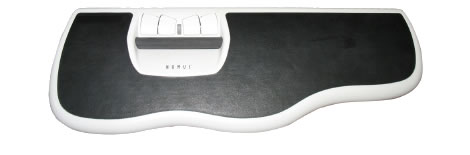
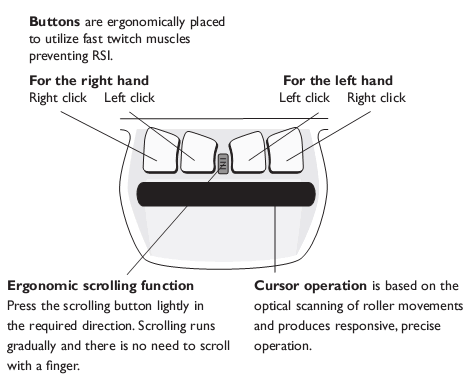
The central control function gives the arms an inwardly-rotated working position and the wrist support keeps your wrists straight. This reduces the load on muscles and the muscle attachment points in the wrists, forearms, shoulders and neck. Basically, it means it's good for you. I'm proof.
The three most common problems associated with mousing are reaching, gripping and overuse. The NOMUS addresses all of these issues.
Because it sits in front of your keyboard, reaching is eliminated and, as both hands are used to operate the mouse, the workload is shared whilst both hands are kept in a neutral position.
One hand operates the roller bar to move the cursor whilst the other is responsible for clicking. As the buttons are set up for left or right hand use, it is easy to alternate tasks, thus distributing the workload on each hand.
Controlling the mouse pointer is responsive and effortless. It takes minutes to get accustomed to. As a designer, I regularly need to press keys (like Shift) while using the mouse. Although is becomes a bit more difficult not having one hand "free" so to speak, it is worth the time trying to adjust. You may work slightly slower at times, but it's better than not being able to work at all.
The only minor downsides with the NOMUS are that it's a bit pricey, the scroll feature isn't smooth, and there's no middle mouse button feature. But I can live with that.
So, for anyone suffering similar symptoms to me, I urge you to visit the website, learn all about it, and then give it a try. For those not suffering yet, still give it a go. And all of you, watch your posture!.
Posted: May 06 2008
A matte image? What's that? Hopefully this image should explain…
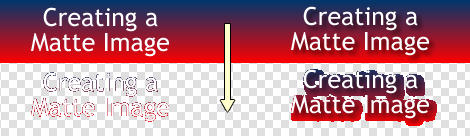
And why would you want to do this? By cutting out an image fitting to its pixel boundaries, you have more flexibility in terms of its position within a complicated background. It also allows for smaller file sizes - as the transparent matte image has fewer colours.
So how do you go about creating one? Easy!
Voila! Your Matte Image will be created
Please note that the Create Matte Image command currently has problems where sub-layers are involved.
Posted: April 14 2008
With the release of the Spry framework and its integration into Adobe Dreamweaver CS3, it's now very easy to rapidly develop Ajax-powered web pages.
In this article I'll demonstrate how to insert a Spry menu bar into an existing HTML document, design and export a new skin in Adobe Fireworks CS3, and implement this skin into the Spry menu bar using CSS.
After completing this sample project you will have learned a variety of skills for both Fireworks and Dreamweaver, how to write CSS, and best practice techniques to create an accessible menu system that also supports text resizing in the browser.
To read this article in full, please visit the Adobe Dreamweaver Developer Center.
Posted: March 15 2008
Checkpoint 2.2 of the Web Content Accessibility Guidelines (WCAG) requires that foreground and background colour combinations provide sufficient contrast when viewed by someone having colour deficits or when viewed on a black and white screen.
To assist designers with meeting this requirement, I have created two commands that allow you to compare the contrast of the fills of two vector objects, or compare two colours chosen from the colour picker.
Posted: February 18 2008
I use Fireworks' native Fit and Trim Canvas functions very regularly. However, they're dangerously flawed as they bizarrely select every object on the canvas, regardless of whether they're hidden or locked, and allow them to be moved!
So I thought it was time to create improved versions of these commands, that respect your current selection, and restore it after fitting or trimming the canvas.
My good friend and programmer extraordinaire, Amos Robinson, helped with these commands, writing some awesome classes that manage your selection.
Download Fit and Trim Canvas command pack
I'd suggest re-assigning Ctrl+Alt+F and Ctrl+Alt+T (Win) to these commands to take immediate advantage of them.
Posted: February 17 2008
This minor revision copies the hex code as plain text.
Posted: February 16 2008
Natively, Fireworks does not let you copy the attributes (file format, palette type, transparency etc) of one slice, and paste it on to another. This has forced me to create commands to replace the standard Copy and Paste Attributes functions.
Aside from adding the ability to Paste Attributes on slices, they function almost identically to the native functions. An unfortunate limitation of running a FW command will lose any selected text in a text object, but this is a minor issue in my opinion - and can sometimes be beneficial.
I'd suggest just re-assigning Ctrl+C and Ctrl+Alt+Shift+V (Win) to these commands to begin taking advantage of them straight away.
Posted: January 20 2008
Inspired by similar commands by Dustin Dupree, this new set of commands can improve a user's workflow by allowing automatic copying of colours in a FW document to your clipboard.
The command pack includes:
When assigned to keyboard shortcuts, these commands can greatly improve a user's efficiency - especially when taking the design to the XHTML/CSS build stage.
Please let me know if you find them useful, find any bugs or have suggestions for improvement.
Posted: January 13 2008
Fireworks comes with functions already built in to the Align panel that apparently space objects evenly - but they're pretty useless.
So, I've created two commands to space selected objects evenly on the canvas, both horizontally and vertically respectively.
The user has two choices when using these commands: to specify the spacing in pixels, or let it space the objects depending on the size of the selection bounds.
I'm pretty confident that unlike the Space Evenly commands in the Align panel - my commands actually… Space Evenly!
For accuracy, the spacing of each object takes in to account any strokes and effects applied to an object - and not just it's actual selection bounds.
One example usage is for creating composite images to be used for CSS backgrounds.
Posted: January 4 2008
Fireworks' vector anti-aliasing is unfortunately not as smooth as it is with bitmaps. This is especially noticeable with rotated vectors. One workaround is to convert your objects to symbols and create a bitmap copy of the vectors within the symbol as I did in my last tutorial.
However, I've never been happy with that extra step, and have just discovered that symbols can be set to use "Pixel" mode when transforming - so no more converting to bitmaps. How awesome!
The property isn't changeable natively in the UI, so I have created two commands to do it for you. They change a symbol's tranform mode to Paths or Pixels respectively, and append the current mode to the instance name so you know at a glance which setting it's on.
It's important to note that with a symbol set to Pixel transform mode, scaling it up will cause pixelation.
Let's hope the anti-aliasing algorithm is improved, and that this option makes it in to the UI for CS4.
Download Set Symbol Transform Mode pack in the meantime.
Posted: December 22 2007
With the introduction of the Swap Symbol feature in CS3, Fireworks has given us an incredible flexibility to exchange objects quickly. One particular use is for a photo montage for your website as shown below. One can be created within minutes, and updated ridiculously easily, whenever the need arises.

Posted: December 19 2007
Fire on the Bay, an Adobe Fireworks User Group serving the San Francisco Bay Area, has just launched its new website. Designed by Aaron Beall, with the XHTML/CSS built by me and ColdFusion development by Luke Kilpatrick, the new website showcases just what's achievable when two Fireworks Gurus and a ColdFusion Guy collaborate.
Visit Fire on the Bay to see how awesome it is ;)
Posted: November 24 2007
Fireworks is an awesome tool for most jobs, but diagramming isn't really one of its strong points.
A common request is a decent arrow tool. While FW ships with the Add Arrowheads command, it is quite limited:
So I thought I'd delve into Rich Symbols, to see if these could help to alleviate some of the problems. It turns out they can, and we now have Rich Arrow :)
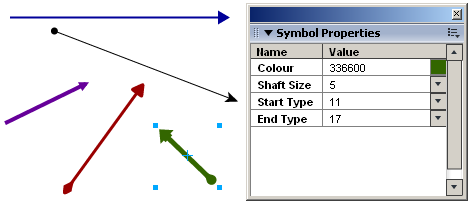
Rich Arrow has the following properties/benefits:
To use Rich Arrow, simply download the zip file below and extract the two files (Rich Arrow.graphic.png & Rich Arrow.jsf) in:
Then just drag it on to the canvas from the Common Library, and open the Symbol Properties panel to change any of the above properties.
Posted: October 01 2007
Here's some new and updated commands…
Based on Kleanthis Economou's command from 2001, my version is a little more useful.
Guides will be placed more intelligently around objects, including their strokes and effects if you choose. For text objects, guides will be placed around the actual text, and not its bounding box. The command will also correctly draw guides around masked objects, symbols and groups.
Guides can be placed at each edge of a selection, through the middle in either direction, or any combination of your choice.
Download Make Guides From Selection command
An update to this popular command gives the user the ability to apply different pixel radii to multiple selected rectangles. I've also fixed a bug where the radius couldn't be set to 0.
Download Set Corner Radius command
This update allows you to use the Brush Size - Increase command on an object with no stroke, to set it's stroke to the default 1px black soft-line.
Download Brush and Stroke commands package
This update fixes a bug where changing the blend mode didn't work correctly when a mask was selected.
Download Change Blend Mode commands package
A big thank you goes out to Aaron Beall, for without his help and his FWAPI Inspector panel, none of these would have been possible.
Posted: September 10 2007
I've always been disappointed by the fact that the Primitive Rectangle tool used percentages for its corner roundness. I'm not sure what the reasoning behind it was, but I'm pretty sure it's not what most users are looking for.
The Rounded Rectangle Autoshape improves on the primitive in a lot of ways - but it also has some serious downsides.
So anyway, I thought I've give Fireworks users an opportunity to use the Primitive Rectangle and specify pixel corner radii.
Download Firewoiks Set Corner Radius command
Just pop it in your /Configuration/Commands folder.
To accompany my new command, I have also updated my Resize Objects commands pack to version 1.2. This update incorporates the technology found in Set Corner Radius, to allow you to resize rectangles by 1 or 10 pixels in any direction and maintain the same corner radius in pixels.
Posted: August 01 2007
Following cold on the heels of my article, Creating Ajax loading animations in Fireworks, comes a new tutorial on how to create the "Snake" style loading animations. The results of which are far better than what can be created at (insert bias here) www.ajaxload.info.
Take a look and bask in its delights…
Posted: June 02 2007
In Photoshop, the user can cycle through Blend Modes using Shift+- & Shift+= (or Shift+Num - & Shift+Num +), which also has the added benefit of jumping back to the start when you move on from the last blend mode available. And now, so can Fireworks :)
As FW CS3 added a number of new blend modes, these commands are designed primarily for this version. However, with a little (read: a lot of) help from Carly Lyddiard, they work on FW 8 and hopefully any version prior also.
It's important to note that blend modes cannot be applied independently to multiple objects. Using these commands on multiple objects will change them all to the blend mode of the highest object in the stack.
Once installed, the commands can be accessed through the Commands > Firewoiks menu.
Posted: June 01 2007
I've created some commands to individually increase or decrease the opacity of any selected objects by either 1 or 10 percent.
Since making them a few weeks ago (and assigning them to keyboard shortcuts), I use them everyday in my work. They're very handy when I'm coding the html of a design…
As I build the html, I regularly take screenshots and overlay them against the original FW design to ensure all of the measurements are perfect. With these commands, I never have to leave the keyboard. Awesome!
Once installed, the commands can be accessed through the Commands > Firewoiks menu.
Posted: May 30 2007
I've just discovered that Safari has a bug that incorrectly repeats non-repeating CSS background images where the image used is larger than the element itself.
The workaround is to give the background extra white-space so the user can't see the repeating. It's a shame, because having multiple "states" in a background image is very common practice, and I'd prefer to not have to waste valuable bytes… but oh well.
Anyways, with this new-found knowledge, I have "fixed" my animated download background images , so any Safari users should now have a flawless experience on the site :)
However, if you come across any other issues, please don't hesitate to let me know.
Posted: May 18 2007
Unfortunately, as a result of the default linear gradient being changed from Horizontal to Vertical with the release of Fireworks CS3, Joseph Lowery's excellent and much used Fade Image Command no longer works correctly… until now.
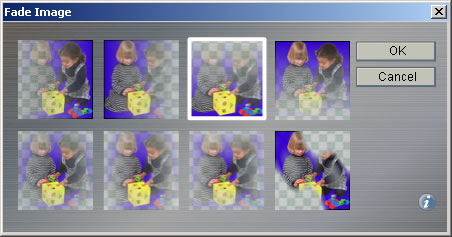
Not content with waiting for an official release or patch, I decided to fix it myself. And I have improved upon it too, by ensuring a stroke isn't ever applied to the mask also.
Download my updated Fade Image command, extract the swf to your /Configuration/Commands/Creative directory, and relax.
Posted: April 29 2007
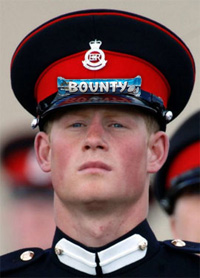
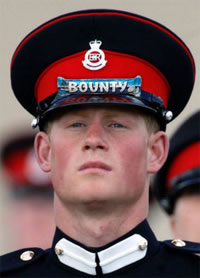
NEWS.com.au reports "a bounty of $625,000 has been put on the head of Prince Harry once he lands in Iraq"
.
It's all just media-grabbing, meaningless propaganda, so thought I'd lighten the mood with this rather inappropriate image…
Posted: March 20 2007
This set of commands can be used to quickly change the height and width of any object by either 1 or 10 pixels. The package contains…
The commands can be accessed through the Commands > Firewoiks menu.
Posted: March 10 2007
Here's a new set of commands that allow you to Commands to quickly change the size & edge softness of the Brush tool and strokes of multiple vector objects. The package contains…
I'd suggest assigning them to keyboard shortcuts and using the Shift key as the modifier so as not to take the focus from the selected tool or object.
The commands can be accessed through the Commands > Firewoiks menu.
Posted: February 25 2007
I've created a series of Frame commands that should hopefully improve Fireworks users' workflow. The package contains…
The Go to… commands are especially useful because they wrap around to the first/last frame in the document.
The commands can be accessed through the Commands > Firewoiks menu and can of course be assigned to keyboard shortcuts.
Posted: February 22 2007
 Everybody's seen them. The nice swirly loading animations that accompany many Ajax web
applications. But just how easy is it to create your own? With this technique, you'll be creating one for
every project in a matter of minutes using Fireworks® 8.
Everybody's seen them. The nice swirly loading animations that accompany many Ajax web
applications. But just how easy is it to create your own? With this technique, you'll be creating one for
every project in a matter of minutes using Fireworks® 8.
To read this article in full, please visit the Adobe Fireworks Design Center.
Copyright © 2013 Matt Stow. Firewoiks is powered by NomusNavigator.